 Whatsable





TL;DR:
- Managing team access on WhatsApp Business is crucial for smooth operation and data security. The app supports only five devices and no role-based permissions, limiting team expansion, while the API supports unlimited agents with role assignments and advanced routing. Proper setup, regular audits, and clear policies prevent operational chaos and safeguard sensitive data.
Managing team access on a WhatsApp Business account is defined as the process of controlling which team members can view, respond to, and administer your business conversations, and which permissions each person holds. Most business managers treat this as a technical afterthought. It is actually the single biggest factor in whether your WhatsApp channel runs smoothly or collapses into missed messages and data leaks. The two tools at the center of this process are the WhatsApp Business app and the WhatsApp Business API, and they handle team access in fundamentally different ways. Getting this distinction right before you add a single team member saves weeks of cleanup later.
How to manage team access in a WhatsApp Business account: app vs. API
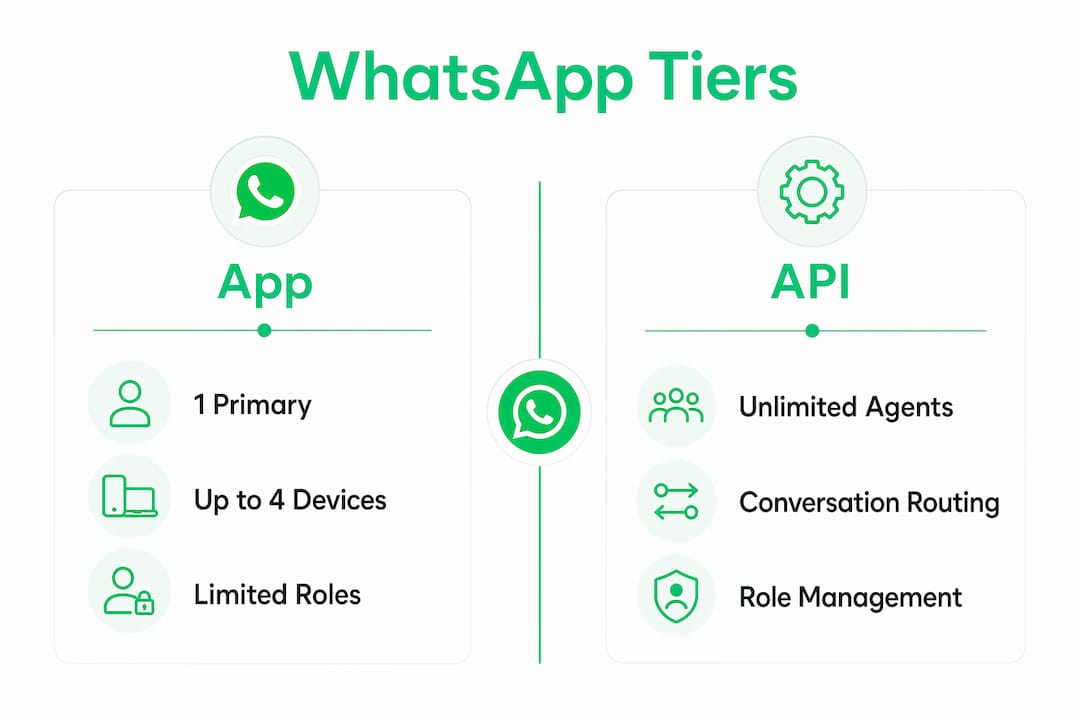
The WhatsApp Business app is built for one primary user. You can link up to four additional devices to your primary phone, which gives a small team limited shared access. Those linked devices include Web, Desktop, and other mobile devices. Beyond four linked devices, the app has no native way to add more agents.

The WhatsApp Business API is a different tier entirely. It supports multiple agents sharing one business number, with routing features that the app cannot match. That means a team of 10 support agents can all work from the same WhatsApp number without stepping on each other’s conversations.
The table below shows the key differences between the two tiers for WhatsApp Business account user management.
| Feature | WhatsApp Business app | WhatsApp Business API |
|---|---|---|
| Number of users | 1 primary + up to 4 linked devices | Unlimited agents |
| Conversation routing | None | Round-robin, skill-based |
| Shared conversation history | Partial (linked devices only) | Full, across all agents |
| Role-based permissions | Not available | Admin, Agent, Editor roles |
| Third-party integrations | Limited | CRM, Zapier, Make, n8n |
| Best for | Solo operators or very small teams | Teams of 3 or more agents |
The decision point is straightforward. If your team has more than two people handling customer conversations, the API tier is the right infrastructure. Staying on the app beyond that point creates bottlenecks that no amount of manual coordination can fix.
How to set up and control team permissions step by step
Setting up permissions correctly from day one prevents the most common access problems. The process differs depending on which tier you use.
For the WhatsApp Business app
- Open WhatsApp Business on your primary phone.
- Go to Settings, then Linked Devices.
- Tap Link a Device and scan the QR code on the secondary device.
- Label each linked device clearly so you know which team member uses it.
- Repeat for up to four devices total.
The app does not support named roles or per-agent permissions. Every linked device has the same level of access as the primary phone. That is a hard limit of the app tier.
For the WhatsApp Business API
- Choose a Business Solution Provider (BSP). BSPs like Arkesel connect your WhatsApp number to a shared inbox platform with multi-agent workflows and CRM integrations.
- Register your business phone number through the BSP’s onboarding process.
- Access the team management dashboard inside your BSP platform.
- Create user accounts for each team member.
- Assign roles based on job function.
Role assignment is where most of the real control happens. The three standard roles in multi-agent WhatsApp platforms are:
- Admin: Broad access to all conversations, settings, and team management. Admins cannot manage the account owner’s permissions.
- Agent: Access limited to assigned chats only. Agents cannot view conversations outside their queue.
- Editor: Can create and edit content and templates but cannot access billing information or account settings.
Pro Tip: Assign the Agent role to anyone whose job is purely to respond to customers. Reserve Admin access for team leads only. This single decision eliminates most permission conflicts before they start.
Effective conversation routing is as critical as security in multi-agent setups. The API tier supports routing methods like round-robin and skill-based distribution, which are necessary for teams handling more than a handful of conversations per hour.
Best practices to prevent operational chaos and protect administrative access
Permission sprawl is the biggest operational risk in WhatsApp Business account user management. It happens when managers grant admin access widely to avoid friction. Practitioners recommend creating read-only or agent-only tiers for the majority of staff, reserving full admin rights for a maximum of two people per team.
The following practices keep your setup clean and auditable.
- Restrict add/remove permissions. Limiting who can add or remove members to the founder and one designated co-admin reduces group disruptions and prevents unauthorized access. Letting anyone add members causes leaks and confusion that compound over time.
- Use pinned messages for team guidelines. Pin a message at the top of every team group that states the group’s purpose, expected response times, and escalation rules. This replaces the informal verbal briefings that nobody remembers.
- Cap admin roles at two per team. More admins than that creates conflicting decisions and makes it impossible to audit who changed what.
- Create tiered access levels. Most staff should operate at the Agent level. Read-only access works well for supervisors who need visibility without the ability to alter conversations.
- Document your permission matrix. Keep a simple spreadsheet that maps each team member’s name, role, and access level. Update it every time someone joins or leaves.
Admin permissions in WhatsApp groups cover a specific set of controls: who can add or remove members, who can change group settings, who can delete messages, who can restrict messaging, and who can pin messages. Treating each of these as a separate decision, rather than a single on/off switch, gives you far more precise control over team behavior.
Pro Tip: Review your permission matrix every 90 days. Team roles change faster than most managers expect, and outdated permissions are a common source of data exposure.
How to troubleshoot common team access issues in WhatsApp Business
Even well-configured teams run into access problems. The most common issues have clear fixes.
Unauthorized members appearing in team groups
This happens when add-member permissions are open to all participants. Fix it by going to group settings and restricting that permission to admins only. Then audit the current member list and remove anyone who should not have access.
Permission conflicts between agents
Conflicts arise when two agents have overlapping access to the same conversation queue. The solution is to define conversation ownership rules before assigning access. In API platforms, use routing rules to assign conversations automatically rather than letting agents self-select.
Linked device limits on the app tier
If your team needs more than four linked devices, the app tier cannot solve that problem. The only path forward is migrating to the API tier through a BSP. Attempting to work around this limit with multiple phone numbers creates compliance issues under Meta’s policies.
Steps to audit user access
- Export the current user list from your BSP dashboard or group settings.
- Cross-reference it against your permission matrix document.
- Revoke access for any account that no longer matches an active team member.
- Change admin credentials whenever a team lead leaves the organization.
When an issue falls outside your BSP’s self-service options, escalate directly to BSP support rather than attempting workarounds. BSPs maintain direct lines to Meta’s technical teams and can resolve account-level issues that managers cannot fix independently. For teams exploring how chatbots handle conversation routing at scale, that context also informs how to structure agent queues before problems arise.
Key takeaways
Effective team access management in WhatsApp Business requires choosing the right account tier, assigning tiered roles, and enforcing a documented permission matrix reviewed at least every 90 days.
| Point | Details |
|---|---|
| App vs. API tier | The app supports up to 4 linked devices; the API supports unlimited agents with role-based permissions. |
| Role assignment | Use Admin, Agent, and Editor roles to match each team member’s actual job function. |
| Permission sprawl | Limit admin rights to two people per team to prevent accidental data loss or unauthorized changes. |
| Routing matters | API-tier routing methods like round-robin prevent conversation conflicts between agents. |
| Regular audits | Review and update your permission matrix every 90 days as team roles change. |
What I’ve learned managing multi-agent WhatsApp setups
The advice most managers get is to focus on the technical setup: link the devices, assign the roles, and move on. That is only half the job. The other half is behavioral, and it is harder to fix with settings.
The teams I have seen struggle most with WhatsApp Business access are not the ones who chose the wrong tier. They are the ones who gave everyone admin access on day one because it felt easier than explaining the difference between an admin and an agent. Six months later, they are dealing with deleted conversation threads, changed group settings nobody authorized, and agents who cannot figure out which conversations belong to them.
The fix is not more technology. It is a clear written policy that every team member reads before they get access. What can they see? What can they change? Who do they contact if something breaks? Answering those three questions in writing, before anyone logs in, eliminates the majority of access problems I have encountered.
The transition from the app tier to the API tier is also less disruptive than most managers expect, provided you document your current setup before migrating. Map every team member’s current access level, export your conversation history if your BSP supports it, and assign roles in the new environment before you cut over. Teams that skip this step spend their first week on the API tier recreating the access structure they already had.
One more thing: do not treat the permission matrix as a one-time document. Teams change. People get promoted, leave, or take on new responsibilities. An access structure that made sense in january is often wrong by july. Build the 90-day review into your calendar as a recurring task, not a reaction to a problem.
— Axel
Whatsable’s tools for multi-agent WhatsApp management
Managing permissions across a growing team gets complicated fast. Whatsable’s platform is built for exactly this situation, giving business managers the tools to assign roles, automate conversation routing, and keep team access organized without manual overhead.
Whatsable’s Notifyer System integrates with Zapier, Make, n8n, and Pipedrive, so your WhatsApp team management connects directly to the tools your team already uses. The platform supports AI-powered chatbots and bulk messaging with anti-block measures, making it practical for both customer-facing teams and internal operations. Review the available plans and pricing to find the right fit for your team size and workflow requirements.
FAQ
What is the difference between WhatsApp Business app and API for teams?
The WhatsApp Business app supports one primary user with up to four linked devices. The API tier supports unlimited agents with role-based permissions and conversation routing.
How many people can use one WhatsApp Business account?
On the app tier, up to five devices can be active simultaneously (one primary phone plus four linked devices). The API tier has no fixed agent limit.
What roles can I assign to team members in WhatsApp Business?
Standard roles in API-tier platforms include Admin, Agent, and Editor. Each role controls a different scope of access, from full account management down to assigned-chat-only visibility.
How do I prevent unauthorized access to my WhatsApp Business account?
Restrict add/remove member permissions to one or two designated admins, audit your user list every 90 days, and revoke access immediately when a team member leaves the organization.
When should I move from the WhatsApp Business app to the API?
Move to the API tier when your team needs more than four simultaneous users, requires conversation routing, or needs CRM integrations that the app does not support.