 Whatsable





TL;DR:
- An n8n WhatsApp automation workflow is a visual pipeline that connects the WhatsApp Business Cloud API to business logic for messaging tasks without coding. It replaces manual outreach with scalable, event-driven messaging and requires a verified WhatsApp Business Account, a live Meta app, and a stable, self-hosted environment. Proper setup with token management, error handling, and Queue Mode architecture ensures reliable, high-volume automation in production.
An n8n WhatsApp automation workflow is a visual, node-based pipeline that connects the WhatsApp Business Cloud API to your business logic, triggering messages, chatbot replies, and bulk broadcasts without writing custom code. The official term for this practice is workflow automation via API integration, and it runs on n8n’s open-source engine. When configured correctly, it replaces manual outreach with scheduled, event-driven messaging that scales with your operation.
Setting up this kind of system gives you direct control over message timing, contact segmentation, and CRM data. The Meta Business API serves as the official backbone for all WhatsApp message delivery, which means your workflows stay compliant with Meta’s policies from day one. Teams that move from manual messaging to a proper n8n WhatsApp automation workflow setup typically see faster response cycles and fewer missed follow-ups. Whatsable’s Notifyer System integrates directly with n8n, so you can extend these workflows with branded messaging and analytics without rebuilding from scratch.

What do you need before setting up n8n WhatsApp workflows?
The right foundation prevents 90% of setup failures. Before you write a single node, you need four things in place: a running n8n instance, a verified WhatsApp Business Account, a Meta developer app in live mode, and a permanent access token.
Software and hosting requirements:
- n8n instance: Self-hosted on a VPS (Ubuntu 22.04 works well) or via n8n Cloud. Self-hosted n8n on a VPS can run workflows for under $10/month at high volumes, which makes it significantly cheaper than SaaS automation platforms beyond roughly 2,000 operations per month.
- Domain and HTTPS: Meta’s webhook verification requires a publicly accessible HTTPS endpoint. A domain with an SSL certificate is non-negotiable.
- PostgreSQL and Redis: SQLite works for testing, but PostgreSQL is required for production. Redis powers Queue Mode, which separates webhook handling from worker execution and prevents dropped messages under load.
- Meta developer portal app: Create an app at developers.facebook.com, add the WhatsApp product, and link it to your WhatsApp Business Account.
- WhatsApp Business Account (WABA): You need a verified WABA with at least one approved phone number and at least one approved message template before you can send outbound messages.
Pro Tip: Never start building production workflows with a development-mode Meta app. Development tokens expire in as little as 8 days, which causes workflows to fail without warning. Switch your app to live mode before you configure any credentials in n8n.
The WhatsApp Business API integration process also requires you to understand the difference between reactive chatbot logic and broadcast logic. The Meta Business API does not support WhatsApp Channels as of 2026, so broadcast campaigns must go through the Cloud API using approved templates.
How do you configure n8n workflows for WhatsApp automation?
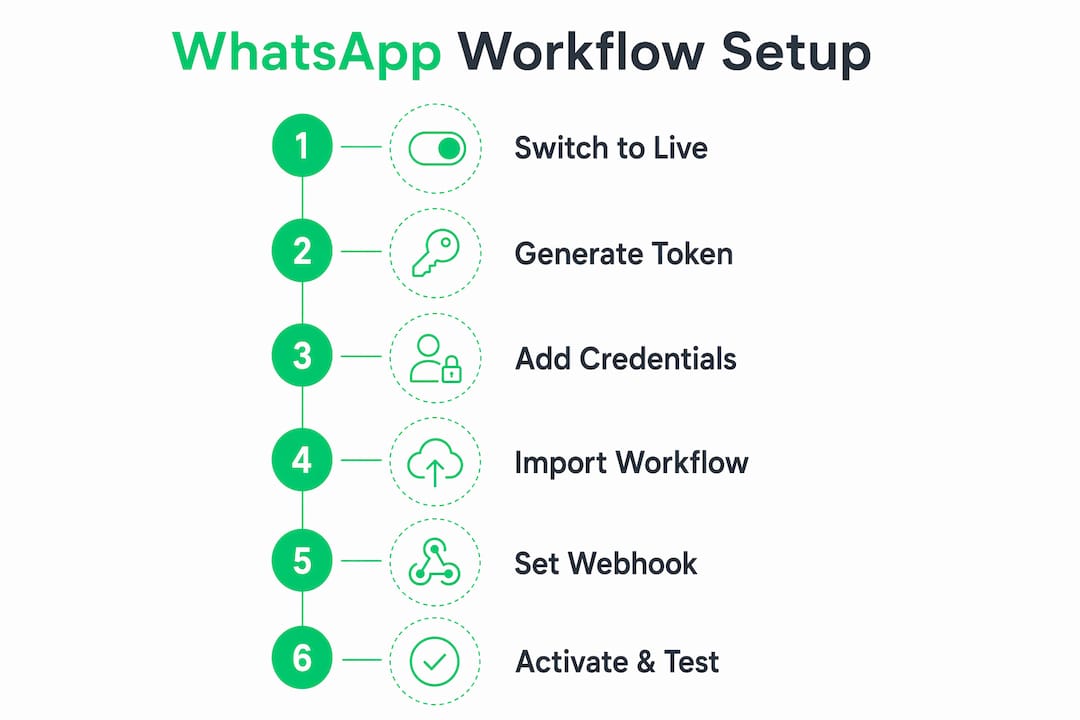
Initial setup takes 1–2 hours. After the base environment is ready, each new workflow takes 15–30 minutes to build. Follow these steps in order.
1. Switch your Meta app to live mode
Open the Meta developer portal, go to your app’s settings, and toggle the mode from Development to Live. This step unlocks permanent system user tokens and removes the 8-day expiration limit.
2. Generate a system user token
Navigate to Business Settings > System Users in Meta Business Suite. Create a system user, assign it the WhatsApp Business Account as an asset, and generate a token with the whatsapp_business_messaging and whatsapp_business_management permissions. Copy this token immediately. It does not expire unless you revoke it.
3. Add WhatsApp credentials in n8n
Open n8n, go to Credentials, and create a new WhatsApp Business Cloud API credential. Paste your system user token and your Phone Number ID from the Meta portal. Test the connection before proceeding.
4. Import or build your workflow
n8n’s community template library includes starter WhatsApp workflows. Import one as a base, or build from scratch using the WhatsApp Business Cloud node. A basic outbound workflow needs three nodes: a trigger, an optional data transformation node (such as a Function or Set node), and a WhatsApp Send Message node.
5. Set up your webhook for inbound messages
Add a Webhook node as your trigger for inbound messages. Copy the webhook URL from n8n and paste it into the Meta portal under WhatsApp > Configuration > Webhook. Set a verify token string, enter it in both places, and click Verify. Meta sends a GET request to confirm the endpoint is live.
6. Activate and test
Toggle the workflow to Active in n8n. Send a test message to your WhatsApp number and confirm the workflow executes. For outbound broadcasts, use a Schedule Trigger node set to run at your desired interval.
| Step | Action | Common mistake |
|---|---|---|
| 1 | Switch app to live mode | Skipping this, leaving app in development |
| 2 | Generate system user token | Using a temporary user token instead |
| 3 | Add credentials in n8n | Entering Phone Number ID instead of token |
| 4 | Build or import workflow | Building without an approved message template |
| 5 | Configure webhook | Mismatched verify token strings |
| 6 | Activate and test | Testing without activating the workflow first |
Pro Tip: For n8n schedule trigger WhatsApp broadcasts, use a wider polling window than you think you need. Narrow filter windows miss events when the schedule trigger fires slightly outside the expected time range. Set your filter to check a 5-minute window instead of an exact timestamp.
What are the most common pitfalls in n8n WhatsApp setup?
Most n8n WhatsApp workflow failures trace back to three root causes: expired tokens, inactive workflows, and webhook misconfigurations. Knowing these in advance saves hours of debugging.
- Token expiration: Development-mode tokens expire quickly, often within 8 days. Beginners frequently forget to switch to live mode and generate a system user token. When the token expires, the workflow silently stops sending messages with no obvious error in the n8n UI.
- Inactive workflows: n8n workflows must be toggled to Active to process incoming webhooks or run on schedule. A workflow left in draft mode receives no triggers and sends nothing.
- Webhook verification failures: If your HTTPS endpoint is unreachable or your verify token strings do not match exactly, Meta rejects the webhook. Double-check that your domain resolves publicly and that your SSL certificate is valid.
- Schedule trigger timing mismatches: A Schedule Trigger set to fire at 9:00 AM with a filter checking for events at exactly 9:00 AM will miss messages if the trigger fires at 9:00:03 AM. Use range-based filters or increase trigger frequency.
- Bulk messaging without throttling: Sending large volumes without pauses between messages triggers Meta’s rate limits. Bulk campaigns require kill switches, deduplication, and throttling to protect your account health.
“Error handling is about 80% of reliable WhatsApp automation system development work. Proper logging, retrying, and alerting distinguishes successful from frustrating implementations.” This means that if you treat error handling as an afterthought, your workflows will fail in production at the worst possible time.
For teams building a WhatsApp chatbot integration, the n8n WhatsApp AI appointment bot guide from Whatsable walks through error node wiring in detail.
How do you scale and maintain n8n WhatsApp automation in production?
Production readiness requires more than an active workflow. It requires architecture decisions that hold up under real traffic.
Queue Mode with Redis and PostgreSQL is the most important architectural choice. Queue Mode separates the process that receives webhooks from the process that executes workflow nodes. Without it, a spike in inbound messages can overwhelm a single n8n process and drop executions. PostgreSQL is required over SQLite for multi-node reliability and to prevent database bloat from execution history.
Monitoring and backups prevent the “set it and forget it” failure pattern common in self-hosted environments. Tools like UptimeRobot send alerts when your n8n instance goes offline. Automated daily backups of your PostgreSQL database and n8n workflow exports protect against data loss. Reliable automation workflows share many of the same monitoring principles used in SEO automation reliability, where uptime and error alerting are treated as first-class concerns.
Security configuration matters from day one. Enable Basic Auth on your n8n instance, verify webhook signatures using Meta’s X-Hub-Signature-256 header, and restrict access to your server with IP allowlists where possible.
Pro Tip: For advanced bulk messaging, implement SHA256 hashing for deduplication and add deliberate wait nodes between message sends. A 40-node workflow with a kill switch, dedup logic, and reply tracking is the production standard for campaigns, not a luxury.
| Architecture layer | Development setup | Production setup |
|---|---|---|
| Database | SQLite | PostgreSQL |
| Queue | None | Redis with Queue Mode |
| Monitoring | Manual checks | UptimeRobot or equivalent |
| Token type | Temporary user token | System user token (permanent) |
| Backups | None | Automated daily exports |
Connecting your workflows to a CRM adds another layer of value. The guide on sending WhatsApp from your CRM shows how to pull contact data directly into n8n nodes, so every message is personalized and logged automatically.
Key Takeaways
A successful n8n WhatsApp automation workflow setup requires live-mode Meta credentials, Queue Mode architecture, and error handling built in from the start, not added later.
| Point | Details |
|---|---|
| Use system user tokens | Permanent tokens prevent silent workflow failures caused by 8-day development token expiration. |
| Switch Meta app to live mode | Live mode is required before generating permanent tokens and sending messages at scale. |
| Enable Queue Mode in production | Redis and PostgreSQL prevent dropped messages and database bloat under real traffic loads. |
| Build error handling first | Error handling accounts for 80% of reliable automation work; wire error nodes before testing. |
| Throttle bulk campaigns | Kill switches, deduplication, and wait nodes protect your WhatsApp account from API bans. |
What I’ve learned from building n8n WhatsApp workflows in production
The biggest mistake I see teams make is treating the first working workflow as a finished product. A workflow that sends one test message successfully is not a production system. The gap between “it works” and “it works reliably at 3 AM when no one is watching” is where most projects break down.
My honest advice: build your error handling before you build your happy path. Wire up error output nodes, log failures to a Google Sheet or a database table, and set up an alert that pings you when a workflow execution fails. That discipline pays off within the first week of real usage.
The other thing I have found is that starting with a single, simple workflow and iterating based on actual usage patterns beats designing a complex 40-node system upfront. Start with a triggered confirmation message. Add a follow-up sequence. Then add CRM sync. Each layer you add should solve a real problem you have already observed, not a hypothetical one.
Token management is the operational task that catches teams off guard most often. Put a calendar reminder to audit your system user tokens and Meta app status every 90 days. It takes 10 minutes and prevents the kind of silent failure that goes unnoticed for days.
— Axel
Whatsable’s plans for teams ready to go further
Teams that have their n8n workflows running often hit the same ceiling: they need branded messaging, detailed analytics, and bulk sending infrastructure that goes beyond what a self-hosted instance handles alone.
Whatsable’s Notifyer System connects directly with n8n, Zapier, Make, and Pipedrive, so your existing workflows keep running while Whatsable adds unlimited branded messages, anti-block bulk sending, and team management on top. The Whatsable pricing plans are built for teams at every stage, from early-stage automation to enterprise-scale campaigns. If you want to see how the platform fits your current setup, the Whatsable team offers onboarding support to get you configured without starting over.
FAQ
What is an n8n WhatsApp automation workflow?
An n8n WhatsApp automation workflow is a visual pipeline that connects the WhatsApp Business Cloud API to triggers, data sources, and business logic using n8n’s node-based editor. It automates tasks like sending template messages, routing inbound replies, and scheduling broadcasts.
Do I need coding skills to set up n8n WhatsApp automation?
No coding skills are required for basic workflows. n8n’s visual editor handles most configurations, though complex workflows with custom logic may use JavaScript in Function nodes.
Why are my WhatsApp messages not sending through n8n?
The most common causes are an inactive workflow, an expired access token, or a Meta app still in development mode. Check that your workflow is toggled to Active, your system user token is valid, and your app is in live mode.
How do I set up scheduled WhatsApp broadcasts in n8n?
Use a Schedule Trigger node as the workflow’s starting point, set your desired interval, and connect it to a WhatsApp Send Message node with an approved template. Use a wider time filter window to avoid timing mismatches that cause missed sends.
Is self-hosted n8n cheaper than SaaS automation platforms for WhatsApp?
Self-hosted n8n on a VPS costs under $10/month at high volumes and becomes more cost-effective than SaaS platforms beyond roughly 2,000 operations per month, making it the better choice for teams with consistent, high-volume messaging needs.